Mamrot: A Vibe-Coded Audio Transcriber and Cutter
I had a pile of screen-recording narrations that needed slicing into individual clips, one per topic. Every tool I found either had no GUI or expected me to type start and end timestamps by hand. Scrubbing a waveform and eyeballing boundaries for dozens of segments gets old fast. What I actually wanted was simple: read what was said, decide where to cut, and let the tool work out the timestamps.
So I vibe-coded Mamrot (Polish for “mumbling”, because even when you mumble it still understands you). It transcribes audio with Whisper, gives you a text editor to split and merge lines, then exports each segment as its own audio file.
The three-tab workflow
The whole UI is just three tabs (Transcribe, Editor, Cutter), one per stage of the pipeline.
1. Transcribe
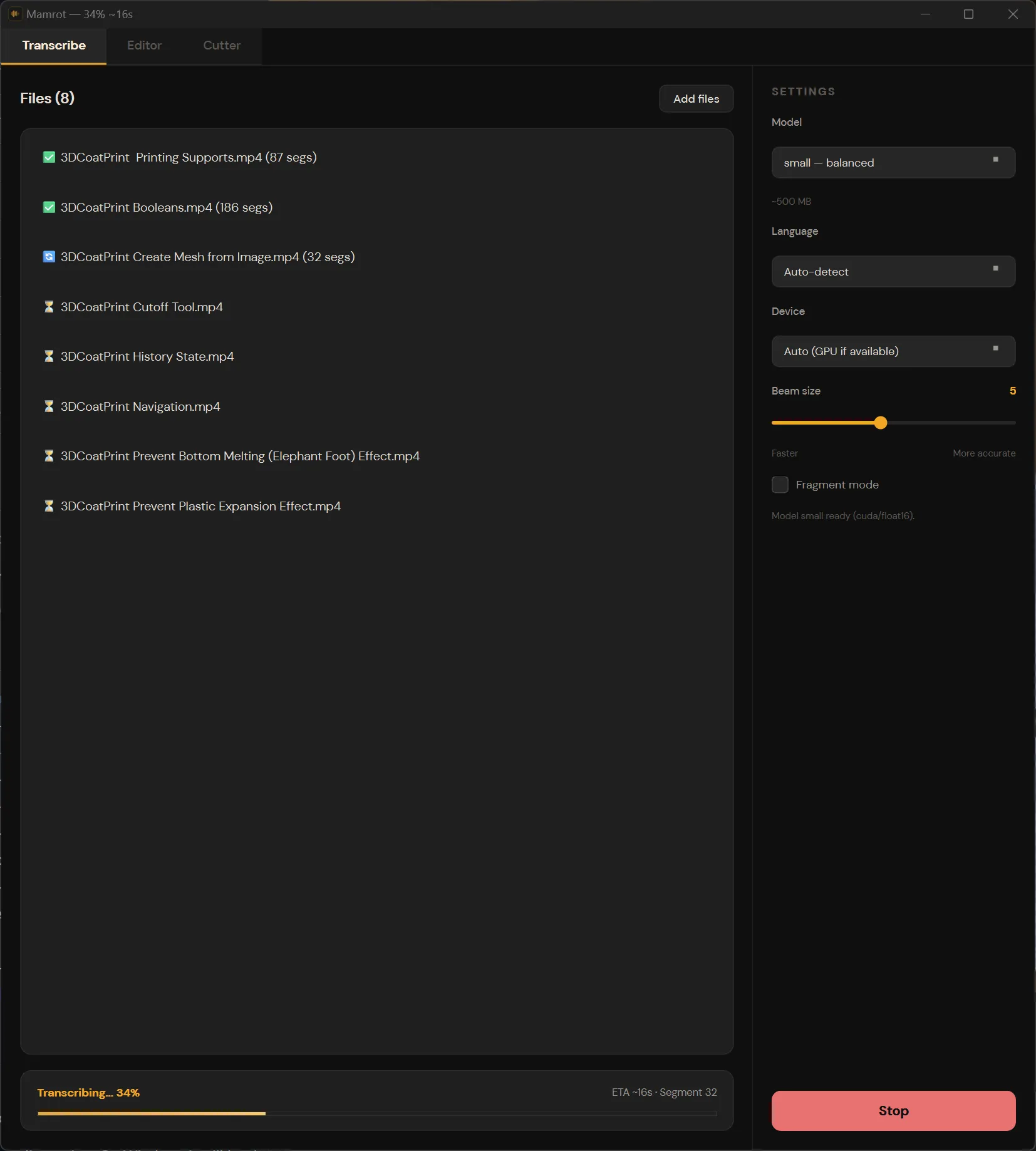
Drop files in, pick a Whisper model size (tiny through large-v3), choose a language or let it auto-detect, and hit go. It runs in the background, so you can queue a whole folder and walk away. Transcriptions are saved to JSON files next to the source audio, so you never have to re-transcribe.
Under the hood it’s faster-whisper with word-level timestamps enabled. GPU (CUDA) if available, CPU with int8 quantization otherwise. VAD filtering is on by default to skip silence and improve accuracy.
Supported input: MP3, WAV, FLAC, OGG, M4A, AAC, WMA, plus video formats (MP4, MKV, AVI, MOV, WebM) since FFmpeg extracts the audio track automatically.
2. Editor
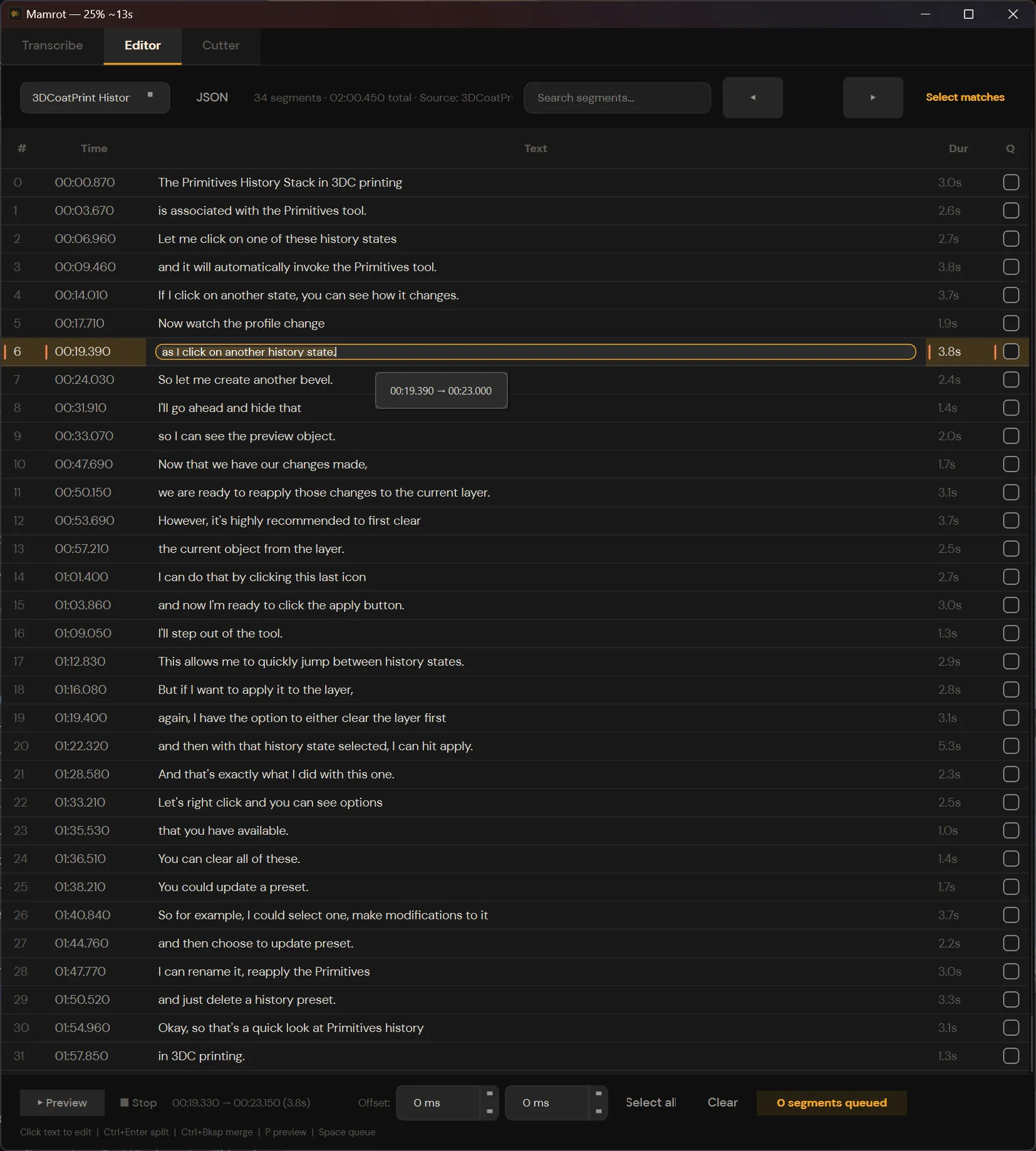
This is where the actual work happens. The transcript loads as a table of timed segments. You can:
- Click any line to edit the text inline.
- Press Ctrl+Enter to split a segment at the cursor. The app snaps to the nearest word boundary and recalculates the timestamps for you.
- Press Ctrl+Delete or Ctrl+Backspace to merge a segment with the one above it.
- Search across the transcript and select all matches at once.
- Queue segments for export by checking them off.
Split and merge is the core feature. Because Whisper gives word-level timestamps, the app always knows where each word starts and ends, so there’s nothing to guess and no timestamps to type by hand. You read the text, decide “this sentence should be its own clip,” hit Ctrl+Enter, and the boundaries are already where they should be.
The boundaries aren’t always perfect, though. Whisper’s word timestamps can be slightly off, clipping a syllable or leaving a bit of dead air. Each segment has its own offset controls, so you can nudge the start or end by a few hundred milliseconds before exporting.
3. Cutter
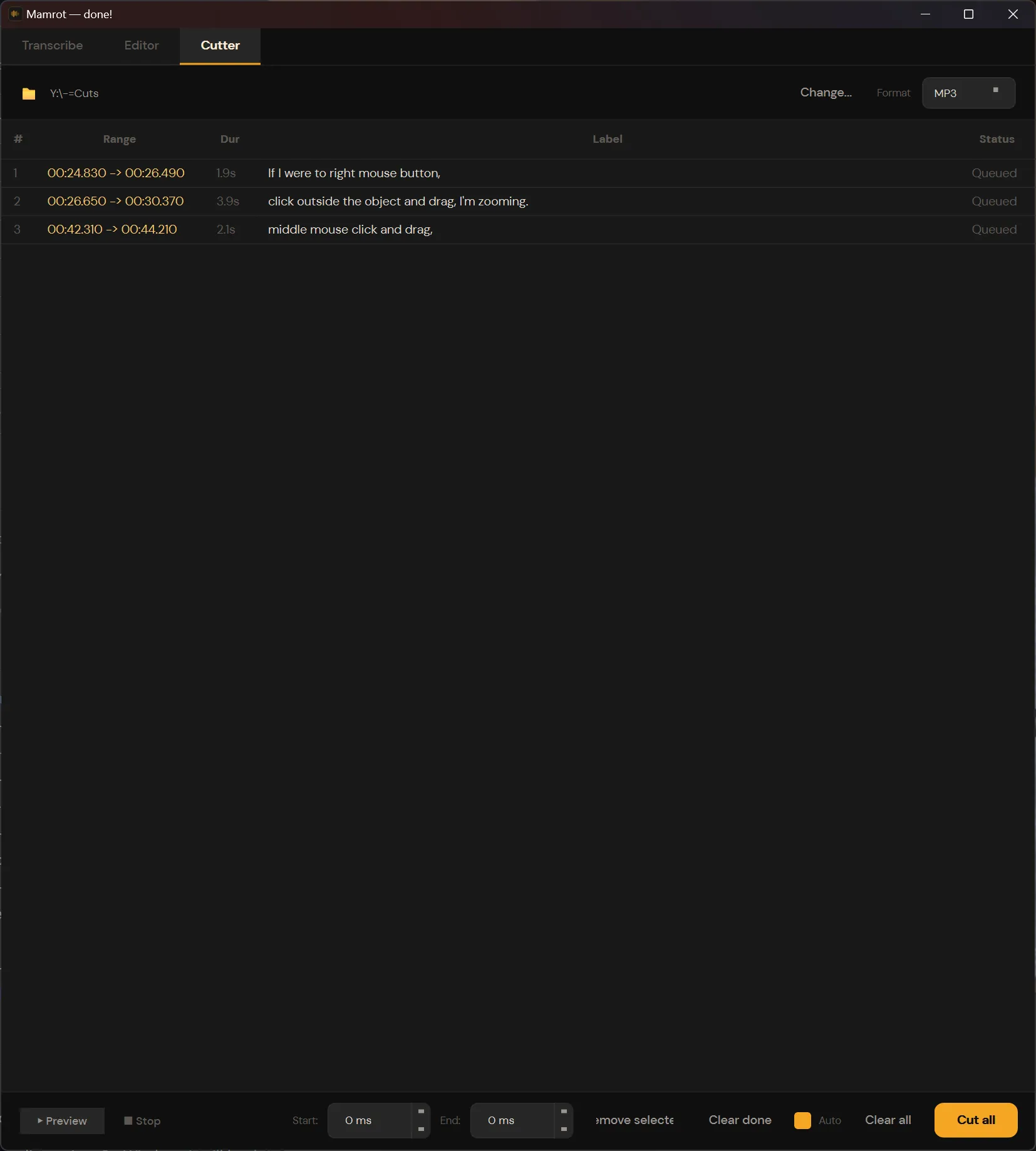
Once you’ve queued your segments, switch to the Cutter tab. Pick an output format and directory, then hit “Cut all.” Each queued segment becomes a separate audio file.
Output formats: WAV, FLAC, MP3, OGG, AAC (M4A), Opus.
The cutter adds a little padding around each cut (60ms before, 150ms after) to compensate for Whisper’s word-boundary precision, which keeps syllables from getting clipped. You can still fine-tune the per-segment offsets if you need to.
Filenames are auto-generated from the transcript text, so you end up with files like if-i-were-to-right-mouse-button.mp3 instead of clip_001.mp3.
Why vibe-code it?
I could have scripted this: parse an SRT, loop through timestamps, call FFmpeg. But the whole point was that I didn’t want to think in timestamps. I wanted to read text, make editorial decisions visually, and let the machine handle the time math.
Vibe-coding with an AI agent made this practical as a weekend project. The UI is PySide6 (Qt6) with a custom dark theme. The transcription engine, the editor logic, the FFmpeg integration: each piece is straightforward on its own, but wiring them into a polished desktop app with keyboard shortcuts, batch processing and persistent state would have been a week of boilerplate on my own.
Quick architecture
- GUI: PySide6 (Qt6), custom dark theme with orange accents
- Transcription: faster-whisper with word-level timestamps
- Audio processing: FFmpeg (auto-downloaded on Windows)
- Transcript export: SRT, VTT, CSV, JSON (with metadata)
- Threading: background workers for transcription and cutting, so the UI stays responsive
- Persistence: recent transcripts, window state, and cutter settings saved to
~/.mamrot/
Try it
The full source is on GitHub: Mamrot.
pip install . and run mamrot. Needs Python 3.10+ and FFmpeg (the app will offer to download FFmpeg for you on Windows).
Listening through audio just to find cut points is a waste of time. I transcribe first, then read and split where it makes sense. Counting milliseconds is the machine’s job; mine is just deciding where one clip ends and the next begins.